How to Install WordPress in cPanel with Softaculous or Manually
- Ali GhanimatiAuthor
- Last updated
- 2 minutesReading time
- 409Views
- Ali Ghanimati
- Last updated:
- 2 min read
- 409 views
cPanel can host WordPress whether your provider supplies an installer or you set it up yourself. Softaculous handles files and database creation. A manual installation gives you control over the document root, database, and user.
Both methods need a domain pointing to the account, working HTTPS, and a server that meets WordPress requirements. Check and back up the destination directory if it already contains a site.
Install with Softaculous
- Open Softaculous Apps Installer, select WordPress, and start an installation.
- Choose HTTPS and the correct domain. Leave the directory empty to install in the domain root, or enter a folder such as
blog. - Enter a site title and a unique administrator username, strong password, and working email address. Review optional plugins and start installation.
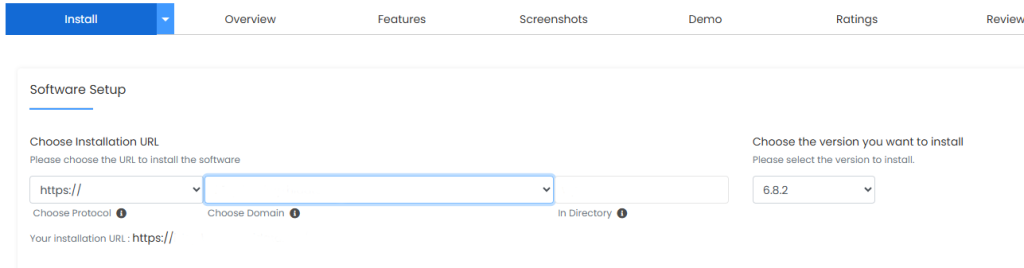
Softaculous installation guide.
Install manually
- Download WordPress and extract its files into the intended document root.
- In cPanel, create a database and a dedicated user. Assign the user to the database with the required privileges. Note both full names, including any account prefix, and the database host from your provider.
- Open the HTTPS address and enter the database details, or create
wp-config.phpas described in the WordPress installation guide. Create the administrator account to finish.
Verify the install
Open the home page and the installation’s /wp-admin/ URL. Publish a test page and verify its permalink, media, and sign-in over HTTPS. Remove the test content and configure backups.