How to Create or Edit the WordPress .htaccess File
- Ali GhanimatiAuthor
- Last updated
- 2 minutesReading time
- 602Views
- Ali Ghanimati
- Last updated:
- 2 min read
- 602 views

If the home page works while posts with readable URLs return 404, the web server may be failing to route those URLs to WordPress. On Apache, the rules involved often live in .htaccess.
Apache reads this file before WordPress runs. An invalid directive can affect the entire site, including the dashboard. Confirm that Apache handles the requests and allows overrides in the site directory. Nginx manages rewrites in its own configuration.
Find and back up the file
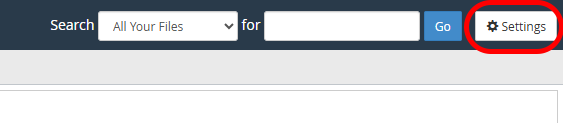
Open the WordPress directory in cPanel File Manager or SFTP. Look for wp-login.php and enable hidden files to see .htaccess. If the installation is in a subdirectory, a file in the domain root can affect it too. Back up the current file outside the public web root.
Rebuild the WordPress rules
Open Settings → Permalinks and save the intended structure. On Apache, WordPress writes the required rules if the file is writable. Otherwise, use the rules the dashboard shows for your installation. Preserve host and cache directives and keep custom rules outside # BEGIN WordPress and # END WordPress unless the host documents another arrangement.
Root, subdirectory, and Multisite installs can use different rules. WordPress Apache guide.
Test after editing
Open the home page, a post, the dashboard, and a redirect. If changes immediately produce a 500 error, restore the file and check the server log. If posts still return 404, ask the host to verify the document root, ordering, and rewrite support. Diagnose an HTTP 500 response.