
The .htaccess file is used to manage the configuration of your website’s hosting environment and WordPress website requests. The .htaccess file is responsible for controlling various server-side features, such as URL redirection, server-side signatures, file caching, password protection, and customizing error pages.
Understanding how the .htaccess file works helps you control parts of your website and optimize it.
In this tutorial, we will learn how to create, edit, and find the .htaccess file in WordPress.
What is the .htaccess File?
The .htaccess file (short for hypertext access) is a standard configuration file used in web servers, typically hosting environments that use the Apache web server. It also plays an important role in WordPress sites. The .htaccess file is a text file that has important roles in the configurations applied in the root directory of websites.
Editing the .htaccess file is usually done to apply or revoke access to website resources. The dot (.) at the beginning of the filename means that this file is a hidden file (these files are also known as dotfiles). Viewing these files will be possible by enabling the relevant option in your hosting file manager.
What is the Use of the .htaccess File?
The primary use of the .htaccess file in WordPress is to manage permalinks. However, other configuration settings can be applied in this file, which can change and optimize certain website features.
Some uses of the .htaccess file include:
- Redirecting and Rewriting URLs: The ability to change the URLs of your website through the .htaccess file helps us redirect requests sent to a specific URL to our desired page on the site. This feature also helps improve your website’s SEO.
- Preventing Bandwidth Theft or Image Hotlinking: Securing website resources prevents bandwidth theft attacks. This feature prevents others from linking images and other resources on your website to their own website and stealing your website’s bandwidth. This feature also reduces traffic congestion on your website.
- Server Error Management: Creating custom error pages and displaying specific messages in situations such as an error occurring are tasks that can be done through the .htaccess file. This makes it easier to find the reason for the error when it occurs and to easily fix server errors.
- Blocking and Allowing Server Access: With the help of this feature in the .htaccess file, we can manage the access of different IP addresses to the server and thereby define rules for these addresses. This can be very effective in improving the security of our website.
- Password Protection on Specific Pages: In the .htaccess file, we can increase the security of certain pages and directories of the website by applying passwords to some pages, meaning that the website requests a password from the user upon entry, and protect them from unwanted users.
So, using the .htaccess file, WordPress administrator users can edit their website and perform security measures on it.
How to Find the .htaccess File for WordPress
The .htaccess file is located in the root directory of the space where WordPress is installed. Note that we are not referring to the root directory on the main host or server where our website is hosted. The root directory for WordPress is the folder where the WordPress installation files are located, such as public_html.
To view this file, you need to change the settings of your hosting file manager to show you the .htaccess file, which is a hidden file.
In this section, we will learn how to find the .htaccess file via cPanel and also via FTP connection.
Finding the .htaccess file in cPanel
- Log in to your cPanel dashboard.
- In the FILES section, select File Manager.
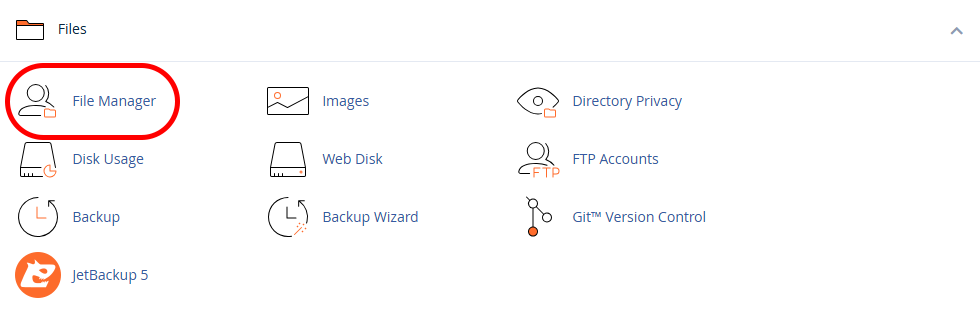
- Enter the folder where you installed WordPress (usually WordPress is installed in the public_html folder). If you do not see the .htaccess file there, it means that hidden files are not currently displayed on the host.
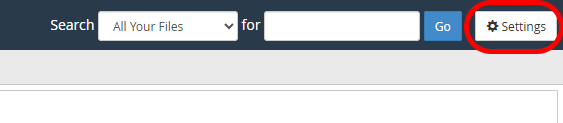
- To make hidden files visible in the hosting environment, select the Settings option.
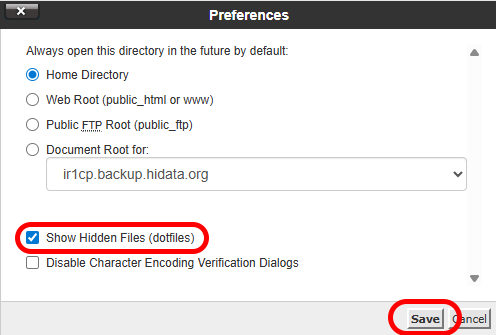
- In the window that opens, check the “Show Hidden Files” box. Then select “Save” to save the settings.
Finding the .htaccess file in FTP connection to hosting
When connecting to your hosting via FTP using tools like FileZilla, you can find your .htaccess file as follows.
- Connect to your WordPress website using an FTP client.
- Enter the root folder for your website (usually this folder is public_html or www).
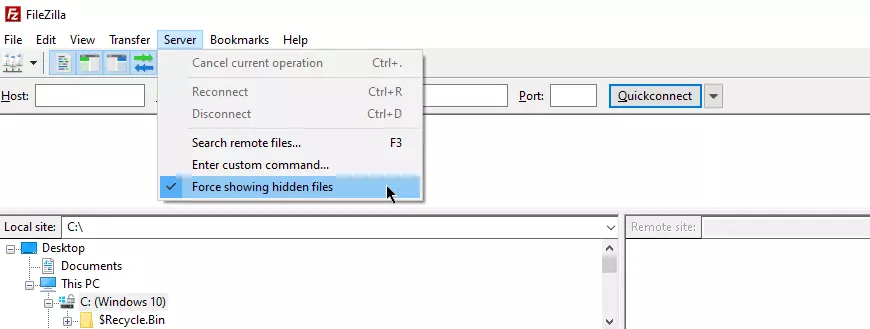
- Enable the option to view hidden files through this path in your FTP client: Select the “Server” option from the top tab and then enable “Force showing hidden files”.
How to Create a .htaccess File for WordPress
In some cases, WordPress does not automatically create the default .htaccess file, or the file may have been created and then deleted for some reason. Here’s how to create the .htaccess file.
- Go to the WordPress installation directory on your hosting account.
- Select the File+ option from the top bar.
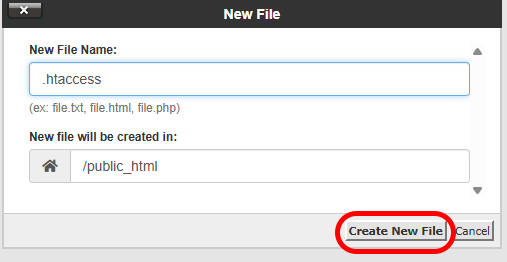
- Enter the file name .htaccess and then select Create new file.
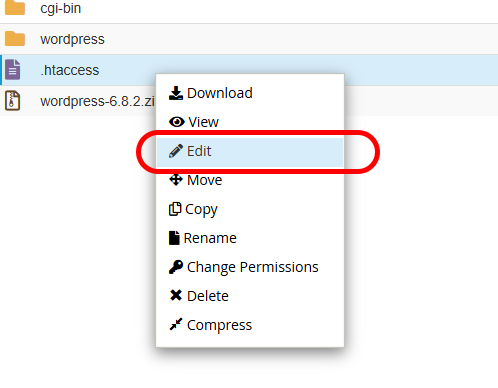
- Open the file for editing. In cPanel, you can do this by right-clicking on the file and selecting the Edit option.
- Enter the following code into your file:
#BEGIN WordPress
RewriteEngine On
RewriteBase /
RewriteRule ^index.php$ - [L]
RewriteCond %{REQUEST_FILENAME} !-f
RewriteCond %{REQUEST_FILENAME} !-d
RewriteRule . /index.php [L]
#END WordPress
This code is the default .htaccess configuration that WordPress automatically creates. This code manages permalinks and defines URLs.
- Save the file and exit.
How to Edit the .htaccess File
Editing the .htaccess file allows us to customize server configurations and implement various features on our WordPress website.
To edit the .htaccess file in cPanel, follow these steps:
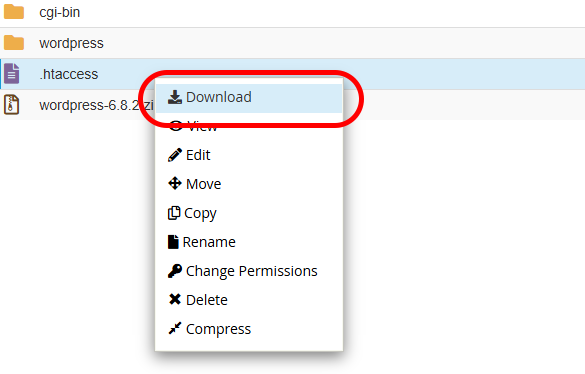
- Before making any changes, it is best to keep a copy of the original file. By right-clicking on the .htaccess file name and selecting the Download option, you can download it to your system.
- Then, by right-clicking on the file name and selecting the Edit option, you can edit your file.
Common Configurations in the .htaccess File for WordPress
There are various possibilities for making changes to a WordPress website when configuring the .htaccess file. In this section, you’ll find some standard configurations that you can apply to improve security and performance on your WordPress website.
Redirects
Redirecting controls the incoming and outgoing traffic of the website. This way, we can ensure that users reach the correct pages on the website after opening specific URLs.
- 301 Redirect. When the permalinks on a website change, we can use a 301 redirect to redirect traffic to a new page. You can do this by using the following command in .htaccess. You need to change the relevant parts with the values related to your website and its files:
Redirect 301 /[old_permalink].html [website_URL]/[current_permalink].html
- Redirect 302. We use a 302 redirect to temporarily redirect traffic to another page. This method is usually done for situations such as testing certain features. We can do this using the following code:
Redirect 302 /[old_permalink].html [website_URL]/[current_permalink].html
- Subdirectory. In this case, we can redirect traffic sent to a subdirectory (a folder separate from the main website path) to another subdirectory. This type of redirect is useful when we want to combine or restructure website content:
Redirect /[subdirectory] [website_URL]/[new_subdirectory]
- Another Domain. In some cases, it is necessary to redirect traffic to another domain or even to another website. This type of redirect is used for situations such as affiliate marketing links, different domains for one website, when the main domain name of the site has been changed to a new name, and domain transfer:
Redirect / [new_website_URL]
Redirecting Domain with www Prefix or Domain without www
Redirecting or removing the www prefix in the .htaccess file related to WordPress is a default feature in this file. This improves SEO and brand consistency for the website. Also, removing the www prefix prevents duplication issues due to URL differences.
Use the following code in the .htaccess file to enforce www for the website:
RewriteEngine On
RewriteCond %{HTTP_HOST} !^www. [NC]
RewriteRule ^ https://www.%{HTTP_HOST}%{REQUEST_URI} [L,R=301]
Also, enter the following code in the .htaccess file to enforce the address without the www prefix for the website:
RewriteEngine On
RewriteCond %{HTTP_HOST} ^www.(.*)$ [NC]
RewriteRule ^ https://%1%{REQUEST_URI} [L,R=301]
In both examples, the .htaccess file redirects incoming requests to addresses with and without www.
Changing HTTP to HTTPS
You can transfer website traffic without HTTP to the website’s domain with HTTPS in the .htaccess file. Applying traffic to HTTPS increases website security and creates a secure connection between the user and the website. Also, changing HTTP to HTTPS is a common approach in intranets and closed networks, and it is also done to test some cases.
To enforce HTTPS traffic in the .htaccess file, use the following code:
RewriteEngine On
RewriteCond %{HTTPS} off
RewriteRule ^ https://%{HTTP_HOST}%{REQUEST_URI} [L,R=301]
Security Tips in WordPress .htaccess File
The .htaccess file contains various directives related to improving security on a WordPress website. Adding these directives enhances website security and prevents potential attacks on WordPress.
Restricting Access
WordPress includes various files with sensitive information that should not be publicly accessible. To prevent unauthorized access to these files, such as: htaccess, wp-config.php, etc., use the following code:
<FilesMatch "^.*(.htaccess|.htpasswd|wp-config.php)$">
Order allow,deny
Deny from all
</FilesMatch>
To add other sensitive files on your site, you can add their names to this code.
Disabling Directory Access
Disabling directory listing is done to block unauthorized access from users to the main server files and directories. This code disables directory listing:
Options -Indexes
This code prevents the contents of paths or directories that do not contain an Index file (such as index.php) from being displayed to users.
Preventing Bandwidth Theft or Image Hotlinking
Preventing bandwidth theft protects the bandwidth of your WordPress site and prevents conflicts in hosting resources. Use the following code to protect images hosted on the server:
RewriteEngine on
RewriteCond %{HTTP_REFERER} !^$
RewriteCond %{HTTP_REFERER} !^http(s)?://(www.)?yourdomain.com [NC]
RewriteRule .(gif|jpg|jpeg|png)$ - [NC,F,L]
This code checks the request for an image file, and if the request does not originate from the specified source, it blocks it. By returning a 403 error code to the request, this code prevents access to the image on the server.
Limiting File Uploads
Limiting the upload of certain files prevents users from uploading suspicious files and scripts. To prevent users from uploading files to the website, we use this code:
<FilesMatch ".(exe|php|sh)$">
Order allow,deny
Deny from all
</FilesMatch>
This code prevents the uploading of files with the extensions .exe, .php, or .sh.