How to Fix “Unauthorised Copy of the ionCube PHP Encoder” in WordPress
- HiDataAuthor
- Release Date
- 11 minutesReading time
- 2Views
- HiData
- Published:
- 11 min read
- 2 views

Everything worked yesterday. Today the checkout page of your WordPress store, a sign-up form or even the whole site shows a blank page or a 500 error instead of content. The host’s PHP error log shows this ionCube error with the phrase unauthorised copy of the ionCube PHP Encoder:
[27-Nov-2026 09:41:12 UTC] PHP Fatal error:  The encoded file
/home/user/public_html/wp-content/plugins/pay-gateway/includes/license.php
was created with an unauthorised copy of the ionCube PHP Encoder.
Please contact legal@ioncube.com with details of the provider of this PHP script.
in Unknown on line 0
Short answer: ionCube Loader, the PHP module that runs encoded PHP files on the server, refused to run one of your plugin or theme files because that file was built with an unlicensed copy of ionCube Encoder, for example a cracked one. Your hosting and your PHP settings are not the cause, and only a package that the original developer builds with a licensed Encoder fixes it.
Steps 1 to 5 fix the error on your site. Developers and web designers have their own sections after the steps, and if your message is slightly different, see the table of other ionCube errors near the end of this guide.
What exactly does this message mean?
Two ionCube tools are involved in this error:
- ionCube Encoder: a paid tool that plugin and theme developers use to encode their PHP code so that nobody can read or modify it.
- ionCube Loader: a PHP module that the host installs on the server so that encoded files can run when a page opens.
Loader recognizes files built with unauthorized, unlicensed copies of the Encoder and refuses to run them. So the word “unauthorised” has nothing to do with the license you bought from the seller; it refers to the license of the tool the file was built with. That is why the message asks you to report the script’s provider to ionCube.
Which part of the site breaks depends on where that file is used. If the file is loaded on every request, like a plugin’s main file or the theme’s functions.php, the whole site, even the WordPress dashboard, stops loading. If only one feature needs it, only that feature fails, such as payment, sending SMS or the license page. Hosts usually turn error display off, so visitors don’t see the message itself, only a blank page or a 500 error.
Why did it appear suddenly?
Loader does this check on the server, so a file that ran yesterday is usually refused after one of these changes:
- Loader was updated on the server. Hosts update Loader along with their PHP packages, and a new version may refuse a file that the previous one ran. The latest Loader at the time of writing is
15.5.1. - The plugin or theme was updated. The new version was built with an unlicensed Encoder, even if the previous one was clean.
- The site moved to another server that has a newer Loader.
In all three cases the problem is in the file itself; Loader only found it.
What won’t fix it
- Switching PHP versions or reinstalling Loader. The file is still the same file. If moving to an older PHP version seems to work for now, you have only postponed the problem and left the site on an older, less secure PHP.
- Clearing caches or reinstalling the same package. The same file simply goes back in place.
- Deleting the file. The plugin needs it and will usually fail with a different error.
- Decoding or editing the file. It violates the developer’s rights, and tampered files are a common way for sites to get infected with malware.
Step 1: Find the file and what it belongs to
The full path of the file comes right after The encoded file in the message. First find that line in the log:
- Log in to the cPanel of the affected hosting account and open File Manager in the Files section.
- In
public_html, selecterror_logand click View in the toolbar. Errors from the WordPress dashboard and fromadmin-ajax.phprequests are written topublic_html/wp-admin/error_log. If the site runs on a subdomain or another domain of the same account, look for the same file in that site’s folder. - Look for
unauthorised copynear the end of the file. The time at the start of each line is usually in UTC, so convert it to your local time. - If you can’t find
error_log, open the Errors tool in the Metrics section of cPanel.
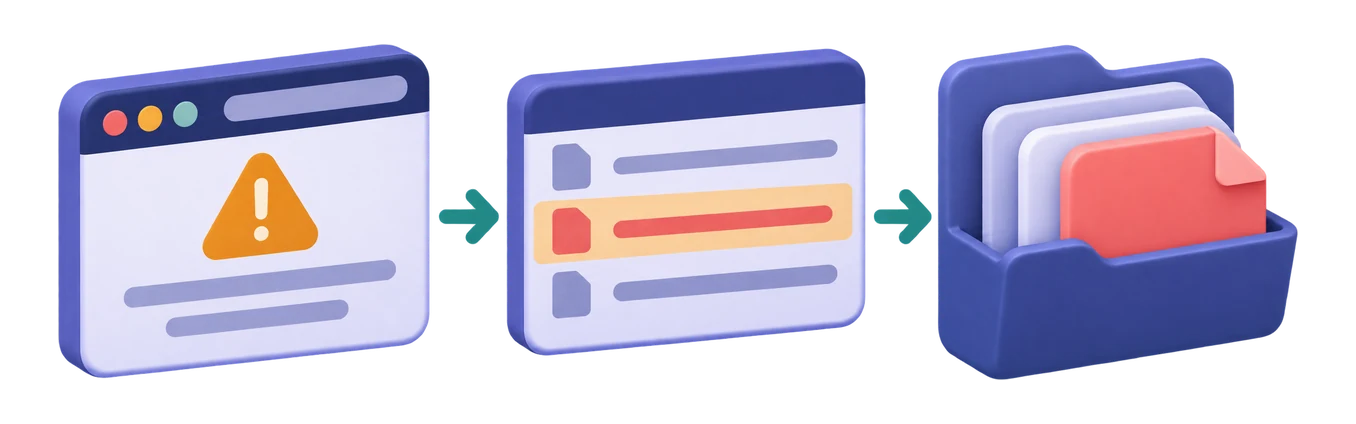
Now use the path to find which product the file belongs to:
wp-content/plugins/pay-gateway/: the plugin in thepay-gatewayfolder. You can see its full name on the Plugins page of the dashboard.wp-content/themes/: the next folder is the site’s theme or child theme.wp-content/mu-plugins/: a must-use plugin, which is not in the regular plugin list and was usually added by the site’s designer or by another plugin.- In other scripts, such as WHMCS or OpenCart, the module name is in the same path.
PHP stops at the first fatal error. If you have several products from the same seller, the same message may appear for another file after you fix the first one, so check the log again after every change.
If you have access to cPanel Terminal or SSH, this command pulls the latest errors of this kind from all of the site’s logs:
grep -r --include=error_log --include=debug.log "unauthorised copy" ~/public_html | tail -n 5Step 2: If the site or dashboard won’t load, switch the plugin off for now
If the error has taken down the whole site or the dashboard, switch that plugin off in File Manager until the clean version arrives:
- Go to
public_html/wp-content/plugins. - Rename the plugin’s folder, for example
pay-gatewaytopay-gateway.off. WordPress deactivates a plugin whose folder it can’t find, and the rest of the site comes back. - Check what stopped working with the plugin off. If it is a payment gateway, enable another gateway until it is fixed, or let your customers know.
Don’t “Delete” the plugin on the Plugins page. Deleting it from the dashboard runs the plugin’s own uninstall routine and may also remove its settings and data, such as gateway keys. Renaming the folder keeps these settings in the database.
If the file is in mu-plugins, add .off to the end of that plugin’s PHP file name in wp-content/mu-plugins; WordPress only runs the .php files in that folder. If the file is in the theme, renaming the theme folder changes the look of the whole site, so it is better to go straight to step 3.
Step 3: Get a clean version from the original developer
There is only one lasting fix: a package that the developer has built with a licensed ionCube Encoder. Send the seller or developer:
- The full error line from the log, including the file path
- The name and version of the plugin or theme, and your order number
- The site’s PHP version: in the dashboard under Tools → Site Health → Info → Server, or in cPanel under MultiPHP Manager or Select PHP Version
- The Loader version: in Terminal,
php -vshows it in a line likeionCube PHP Loader v15.5.1. The command-line PHP version may differ from the site’s; if in doubt, ask your host’s support.
And ask plainly for “a package built with a licensed Encoder that runs on this PHP and Loader version.”
If you bought the product from a reseller rather than the original developer, keep this in mind: most international WordPress plugins and themes are not encoded at all. If a localized or resold copy of such a product contains an encoded file, the reseller added it. In that case, get the genuine version from the original developer’s site or an authorized seller, and if no genuine version exists, replace the product with a legitimate alternative.
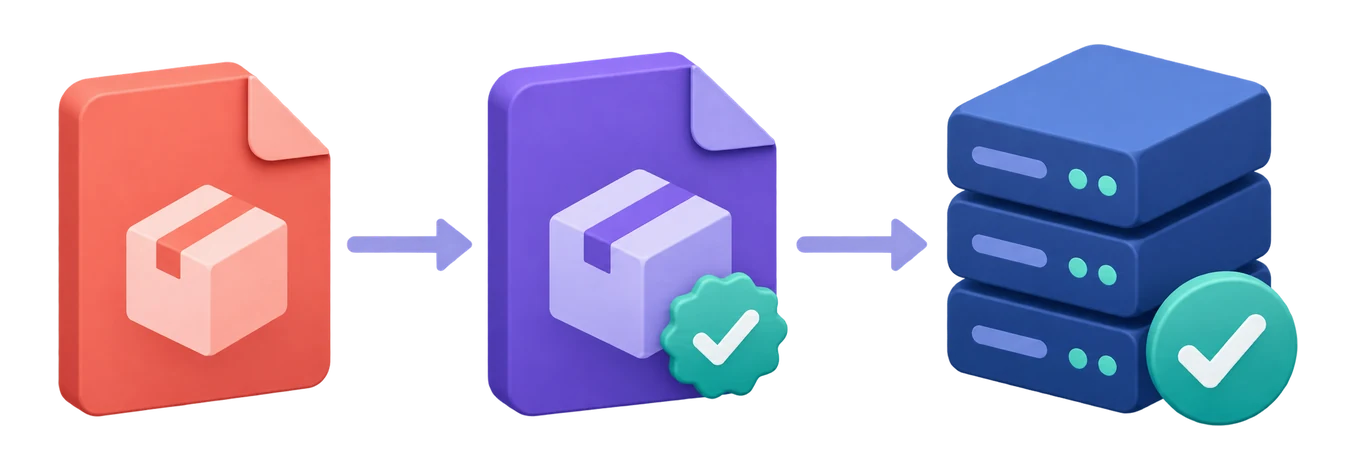
Step 4: Replace the package safely
- Back up the files and the database. HiData’s Professional cPanel Hosting and High-Traffic cPanel Hosting also keep daily, weekly and monthly backups, and restoring them is free.
- If the plugin is still active and the dashboard opens, upload the new zip from Plugins → Add New Plugin → Upload Plugin. WordPress offers to replace the current version with the uploaded one, and the plugin’s settings stay in place.
- If you renamed the folder in step 2, upload and activate the new plugin the same way, then delete the
.offfolder in File Manager. - For a theme, do the same from Appearance → Themes → Add New Theme → Upload Theme.
- If it is a store and you have a staging copy, test the package there first.
Step 5: Try the same action again
Repeat the page or action that failed, such as a test payment, a login or a form submission, in a private browser window. Then open error_log and check that no new line was written at that time. If the same message appears for another file, repeat the steps for that product.
If your site is hosted at HiData and you couldn’t find the file, or the error remains after the replacement, send the domain, page URL, time of the error and the full log line to HiData support. For other messages, see How to Fix a 500 Internal Server Error on Shared Hosting and How to Fix the WordPress White Screen of Death.
For developers: if your own files cause this error
If your customers see this message for files you encoded, your Encoder doesn’t have a valid license; for example, it is a cracked copy or you got it from someone else. No setting on the customer’s server can fix that.
- Get an Encoder license from ionCube itself, re-encode all files and release the new version to every customer.
- Before each release, test the package on a server with the latest Loader and every PHP version you support.
- State on the product page which PHP versions the package is built for, so buyers know before they buy.
- In an unencoded file of your plugin, check with
function_exists('ioncube_loader_version')andioncube_loader_version()whether Loader is present and which version it is, so you can show buyers a clear message instead of a fatal error.
For web designers: keep it from happening again
- Buy encoded products only from the original developer or an authorized seller, and ask before buying whether the files are encoded with ionCube and which PHP versions they support.
- Register each product’s license and invoice in your client’s name, so getting a new version doesn’t depend on you.
- After every PHP or plugin update, and whenever the host announces a server update, test the site’s critical paths: payment, login, forms and SMS.
- Stay away from nulled copies. Apart from this error, they are a common way for malware to get into WordPress; see the WordPress Security Checklist for Site Owners as well.
To see which files on a site are most likely encoded with ionCube, run this command in Terminal and keep the list with the site’s documentation:
grep -rl --include="*.php" "ionCube" ~/public_html/wp-contentDon’t confuse this message with other ionCube errors
ionCube has several similar messages, and each one has a different fix:
| If the message contains | What it means and what to do |
|---|---|
unauthorised copy | The file was built with an unlicensed Encoder; get a clean package from the developer (this guide). |
to be installed | Loader isn’t enabled for this site’s PHP version; enable it for that version or ask your host’s support. |
cannot run under PHP | The file was built for a different PHP version; select a compatible PHP version or get a compatible package. |
cannot be decoded | The current Loader doesn’t recognize this file; get a package compatible with the current PHP and Loader, or update Loader. |
Frequently asked questions
The seller says it works on other hosts. Is the host to blame?
No. A host that still runs this file probably has an older Loader. The file is still built with an unlicensed Encoder, and moving to a host with an old Loader only postpones the problem.
Will rolling back to the previous plugin version help?
Only if the error started after a plugin update and the previous version was built with a licensed Encoder. Ask the developer, and back up before rolling back. If the error started after a Loader update, the previous version will probably show the same error.
Should I email ionCube?
The message asks you to, but that report only helps ionCube find the file’s provider; it doesn’t fix your site. The fix is still a clean package from the developer.