You may encounter an error when connecting to your Windows server that prevents you from connecting to the Windows Server and tells you that your account is locked. The full error message is as follows:
As a security precaution, the user account has been locked out because there were too many logon attempts or password change attempts. Wait a while before trying again, or contact your system administrator or technical support.
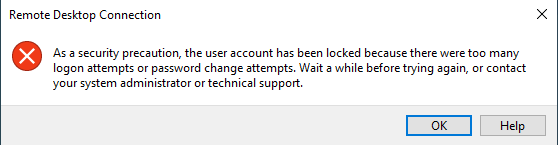
This error usually occurs due to too many unsuccessful attempts to log in to the server via RDP or Remote Desktop Protocol. In some other cases, the error may be due to exceeding the allowed number of attempts to change your account password on the Windows Server.
Fixing the Account Locked Out Error in Desktop Environment
To resolve this issue, you need to re-enter your Windows Server desktop environment. You can use a tool like VNC to do this.
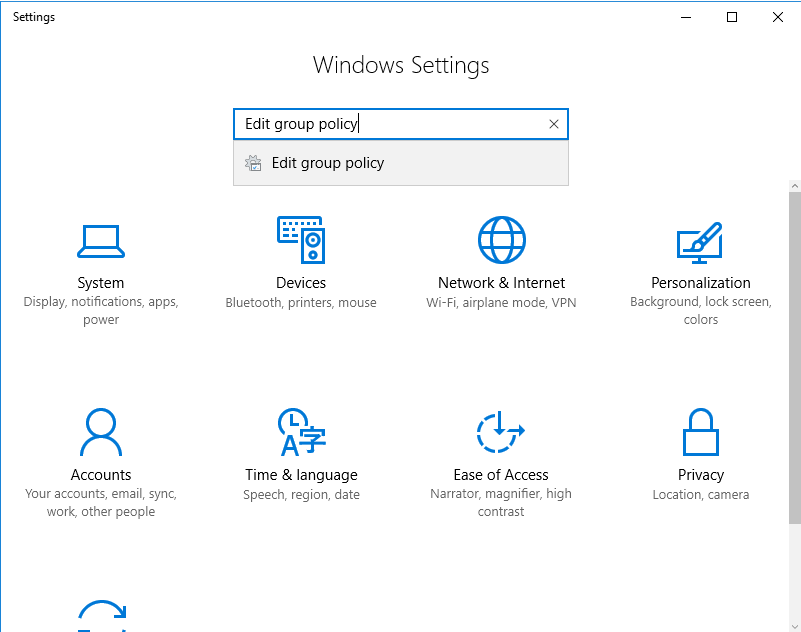
First, go to the Edit group policy option in Settings.
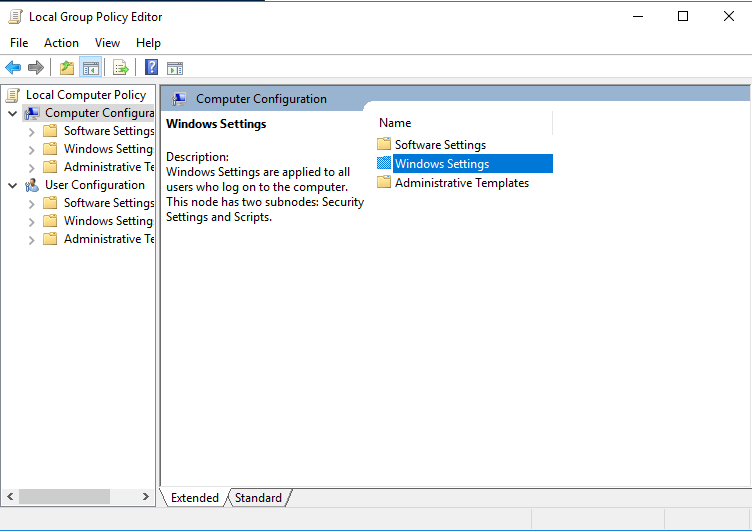
Find the Computer Configuration option.
In the window that opens, find and enter the Computer Configuration option.
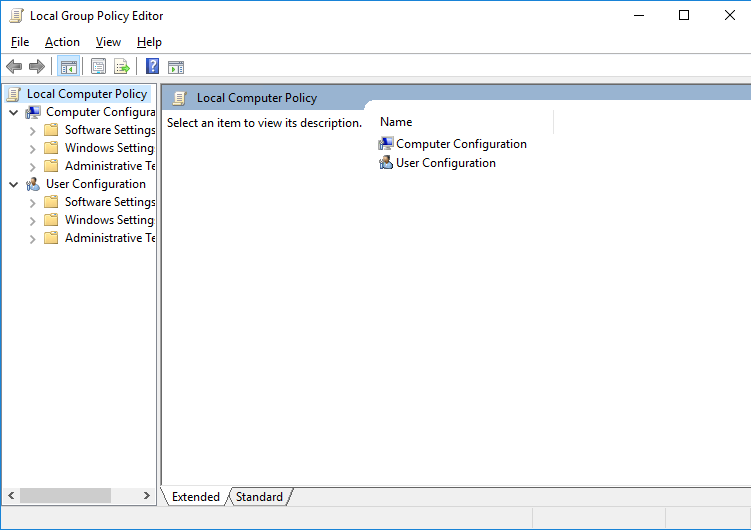
Enter Windows Settings.
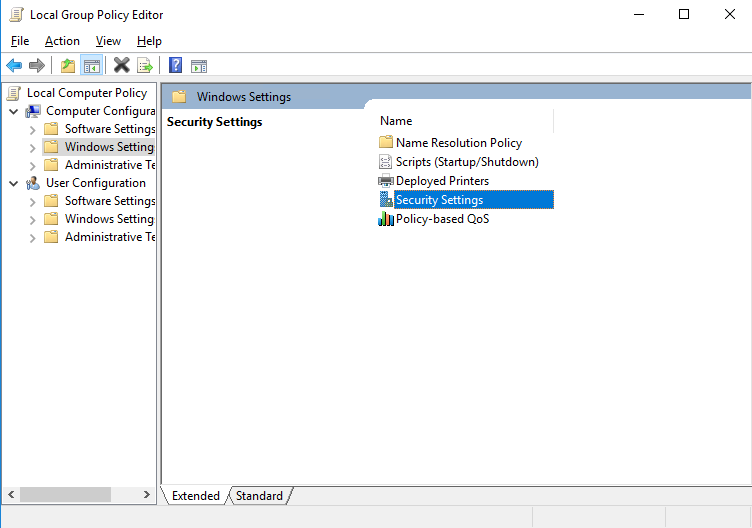
Enter the Security Settings option.
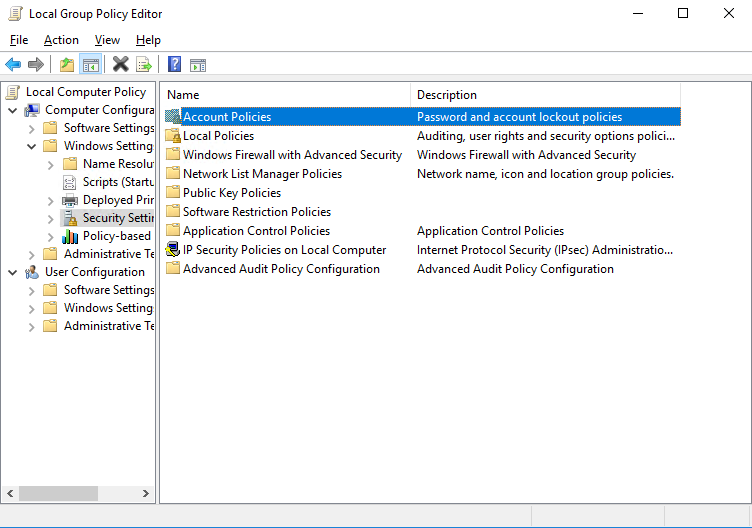
Find and select the Account Policies option.
In this section, you need to change the rules related to your Windows Server users.
Enter Account Lockout Policy.
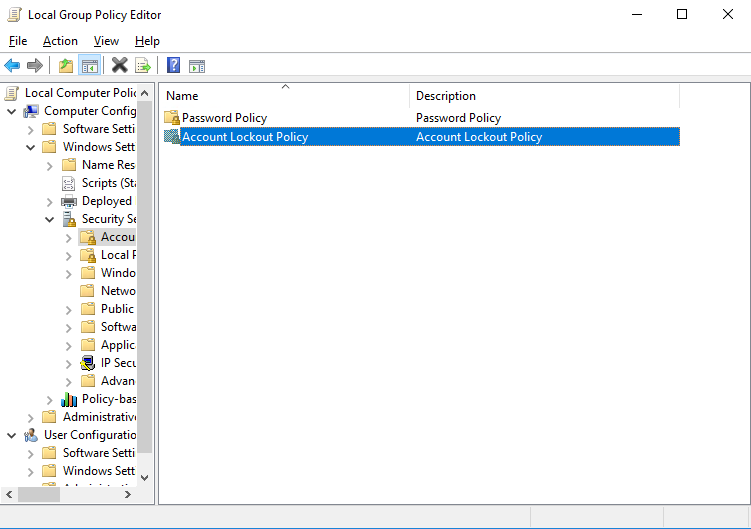
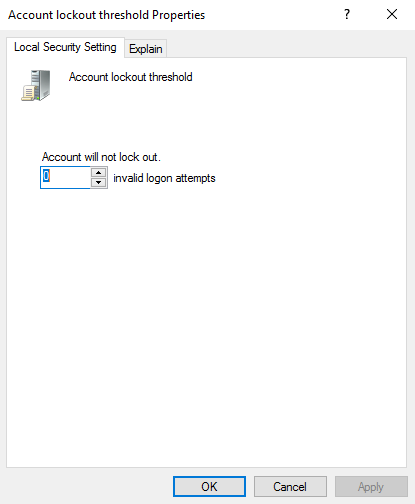
Select the Account Lockout Threshold option.
Through this option, you can edit security settings, as well as user access settings.

Then, in the opened window, and through the Local Security Settings tab, set the Account will not lockout value to 0. Then click on Apply for the settings to take effect.