
Ensuring the correct and problem-free sending of emails from your website or hosting can be one of the most important concerns for users. To this end, enabling SPF, DKIM, and DMARC records for the domain is of paramount importance in achieving this, and is also recommended to users. In this article, we will understand the purpose and how to enable each record.
By enabling SPF, DKIM, and DMARC records on your domain, you can significantly increase the security of your domain and ensure proper email delivery from it. Creating these records can also be effective in preventing security threats. The protocols related to these records increase the security of your communication channels and also provide adequate security in preventing suspicious activities in email services.
Creating an SPF Record (Sender Policy Framework)
An SPF record, or Sender Policy Framework, is a widely used authentication method to prevent phishing attacks and email spoofing. By specifying which IP addresses are authorized to send emails on your domain, the SPF record helps recipients verify the authenticity of received emails.
How to Add an SPF Record to a Domain
To add an SPF record to your domain, you can:
- Log in to your cPanel hosting account
- In the Mail section, click on the Email Deliverability option

- Click on the Manage option next to the domain you want to create the SPF record for

- Scroll down the page to reach the ‘Sender Policy Framework (SPF)’ section
- Click on the Install The Suggested Record option to create the SPF record for your domain
- After completing the process, the page will reload, and a success message for creating the record will be displayed. Note that in some cases, it may take up to 24 hours for the created record to be correctly configured with your domain’s DNS.
After activating the SPF record, email recipients can be sure that the email was sent from your authenticated address.
Creating a DKIM (DomainKeys Identified Mail) Record
A DKIM (DomainKeys Identified Mail) record is another email authentication mechanism that adds a digital signature to outgoing emails. This digital signature helps email recipients from our domain ensure that the email was sent from a valid source and has not been tampered with or replaced by an external agent during transmission.
How to Add a DKIM Record to a Domain?
- Go back to the Email Deliverability section in cPanel
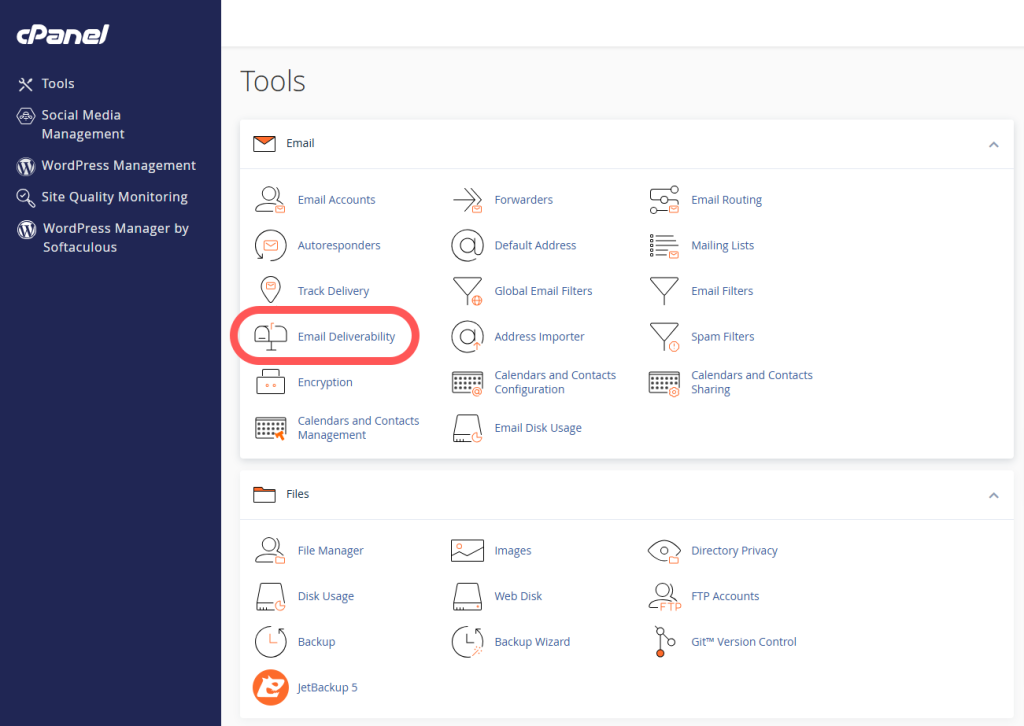
- Click on the Manage option next to the domain you want to create the DKIM record on.

- Scroll to the bottom of the page to find the ‘DomainKeys Identified Mail (DKIM)’ section.
- Click on the ‘Install The Suggested Record’ option to create the DKIM record for your domain.
After creating the DKIM record, emails sent from your domain will include a DKIM digital signature, and recipients can be sure of the authenticity of the email received from your domain.
Creating a DMARC (Domain-based Message Authentication, Reporting, and Conformance) Record
The DMARC (Domain-based Message Authentication, Reporting, and Conformance) record is essentially a policy based on SPF and DKIM records and adds more security features to emails sent from our domain. By providing a policy to the email receiving server, the DMARC record allows it to check the validity of the SPF and DKIM records of the email sending domain. This reduces the risks associated with email fraud and scams.
How to Add a DMARC Record to a Domain?
You can also automatically activate this record on your domain through the option in the Email Deliverability section, and we recommend this method.
There is also a way to manually activate this record.
To manually activate the DMARC record, you can do the following:
- Log in to your cPanel account.
- In the Domains section, select Zone Editor.
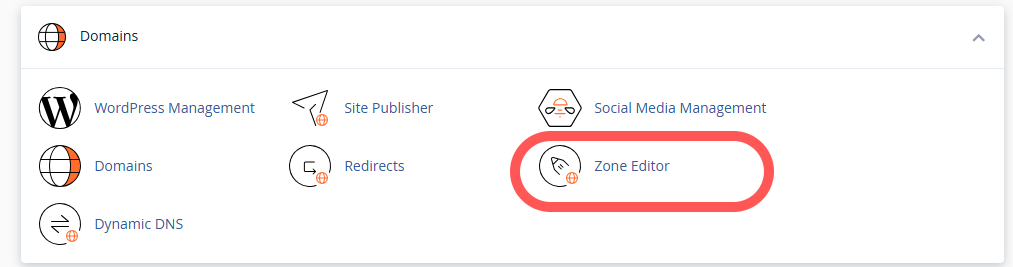
- Click on the Manage option next to the domain name you want to add the DMARC record to.
- Click on the +Add Record option and add a TXT record to your domain with the following specifications:
`name: _dmarc`
`type: TXT`
`record: v=DMARC1;p=none`
After creating the DMARC record, email recipients from our domain can be sure of its authenticity.