
Flask is a lightweight and powerful web framework for the Python programming language. This framework is also known as a micro-framework because it provides all the necessary tools for web development without any complexity.
Unlike other frameworks such as Django, which come with pre-defined features like authentication and an admin panel, Flask does not include these features and allows the user to add their desired features through their own selections.
In cPanel, you can run your Flask projects using the Python-selector tool. Performing this requires installing the libraries related to this framework.
Creating a Python Application in cPanel
- Log in to your cPanel account.
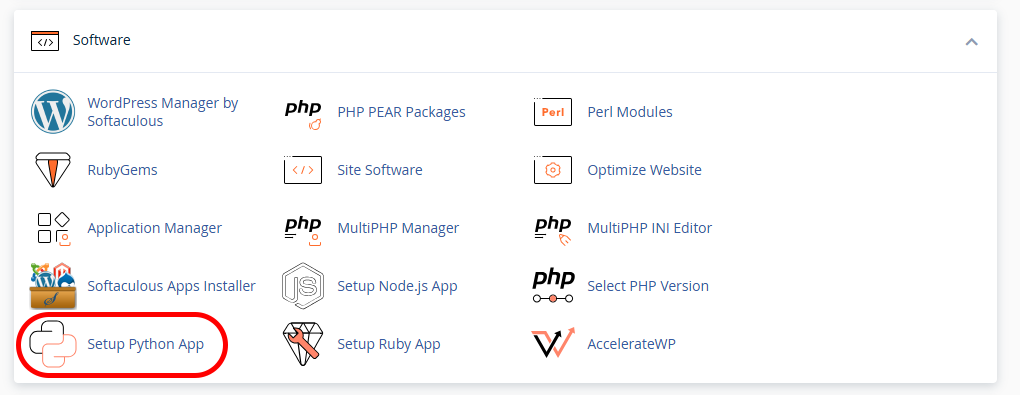
- In the Software section, select Setup Python APP and then choose CREATE APPLICATION.

- Configure your application creation values as follows:
Python version: This section refers to the Python version on your hosting account that you want to use to run your application. Selecting the latest versions is recommended.
Application root: This section is the name of the folder or directory where your application code will be stored. You can choose this name as you wish (in this example, we have set it to flaskapp).
Application URL: This is the domain name or subdomain through which your application will be accessible to users. Leaving this section blank will create the application at the root domain address and make it accessible through the main domain. Adding a name to it will create a folder or directory along that domain path, through which the application will be accessible.
Application Startup File: The name of the main file that will be used to run the application. Set this to app.py.
Application Entry Point: Set this to Application.

After completing these steps, a new folder with the name you set for the Application will be created in your hosting account’s home directory. This folder or directory will include the application configuration files, including the file related to the Application Startup File (app.py in our example).
After completing these steps, you need to install the Flask library, using the Python version configured on our hosting, to be able to run your Flask application.
Installing the Flask Library in cPanel
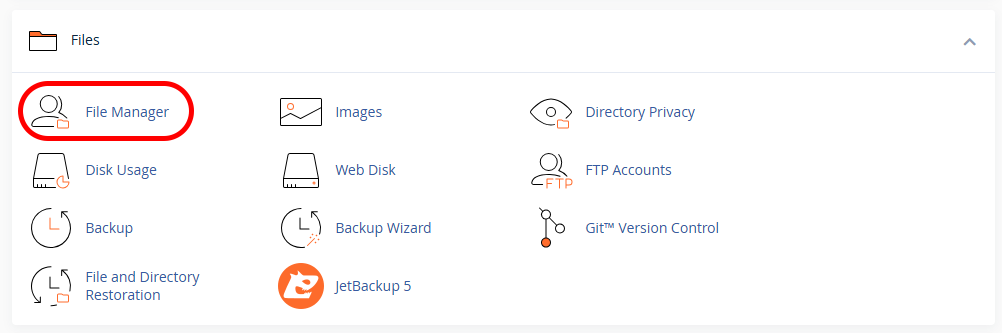
- In the Files section, access File Manager in your hosting cPanel.
- Enter the directory for your Flask application.

- Create a file named requirements.txt within that directory and then enter the following value into it. Finally, save the file and exit:
flask


- In the Software section, select the “Setup Python APP” option to re-enter your Python application management environment. Then, choose the “edit” option for your application.
- In the “add another and press enter” field, enter the path and name of the `requirements.txt` file you created, and then select “Add”. In this example, we created the file in the flask folder, so the file path will be:
home/hostname/flaskapp/requirements.txt

In the hostname section, you need to enter your domain name.
- By adding the file containing the names of the libraries you need, you can install its contents on your Python host via the “Run pip install” option.
Running the Flask Application
After installing the Flask library on your cPanel hosting, you need to edit the contents of the app.py file, located in your application root directory, with your Python code using the Flask framework.
You can use the following code to verify the correct installation of Flask on your host and test its execution capabilities.
from flask import Flask

app = Flask(__name__)

@app.route("/")
def home():
    return "Hello from Flask on cPanel!"

application = app
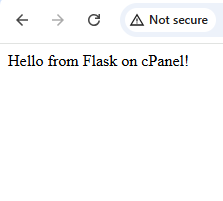
Then, you need to open the domain address related to your application in your browser. You should be able to see that our Flask application is running.
With its lightweight structure, flexibility, and ease of implementation, the Flask framework is a suitable option for developing various web projects, from small applications to scalable web services. Full control over application components, free choice of libraries, and good compatibility with environments like cPanel make Flask a practical choice for Python developers. By correctly setting up Flask on cPanel, you can run fast, manageable, and customized web applications without the complexities of heavier frameworks.
“`html “`