
An SSL certificate is, in essence, a digital certificate that verifies the identity of a website and also enables an encrypted connection. Activating this certificate allows us to use the https protocol instead of the http protocol.
Having and installing an SSL certificate on your domain greatly assists in establishing a secure connection and securely exchanging information between the user’s browser and your website. It also allows the server to protect sensitive information such as passwords, banking details, and personal data.
How to Install and Activate an SSL Certificate in cPanel
- Log in to your hosting cPanel.
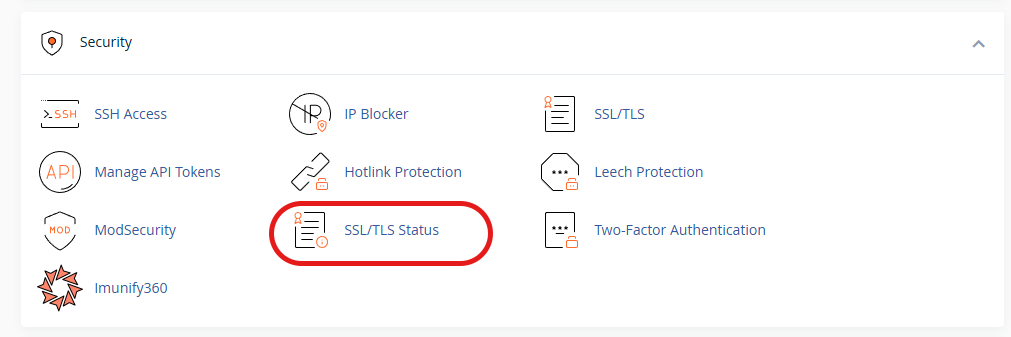
- Select the SSL/TLS status option within the Security section.
Through this section, you can check the status of SSL certificate installation on your domains and subdomains, and proceed with installation and updates. It also offers the ability to configure automatic SSL certificate renewal, so that the certificate is automatically reinstalled when its validity expires.
- Locate and select the domain name or subdomain where you want to install the SSL certificate.
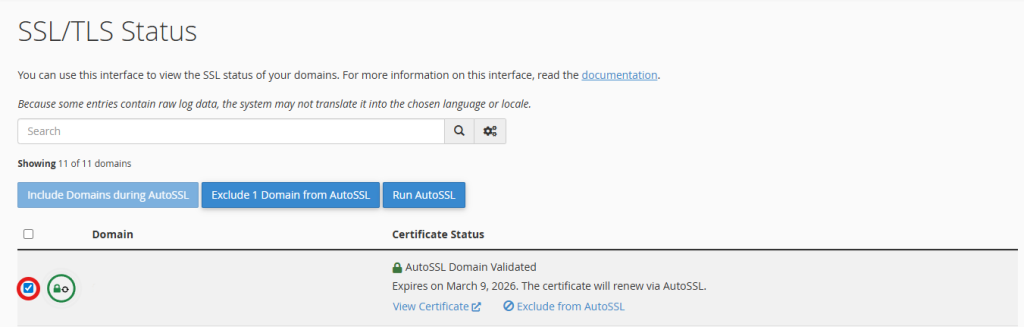
- Select the Run AutoSSL option.
Choosing this option will initiate the SSL certificate installation process. The installation typically takes between 1 and 2 minutes.

This is how the SSL certificate is installed on your domain. As mentioned, you can also install the SSL certificate for subdomains and records configured for your domain (such as mail records).
Redirecting http to https via .htaccess file
After installing the SSL certificate on your domain, you may find that when you access your site through the domain, the connection is made via the http address, which is an older and less secure protocol (compared to https). This could be due to various reasons, such as page caching before the certificate installation in your browser. To resolve this, you can usually add the letter s to the beginning of the address (changing http:// to https://).
Using the .htaccess file, you can redirect requests from http to https, or perform a redirect.
To do this, follow these steps:
- Log in to your cPanel hosting account and access the File Manager.
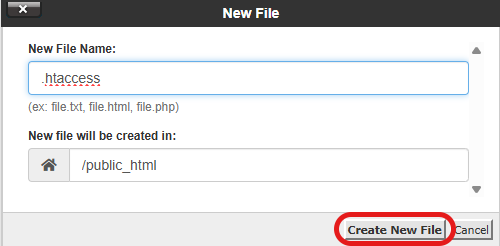
- In the public_html directory (or any folder associated with your domain), create a file named .htaccess.
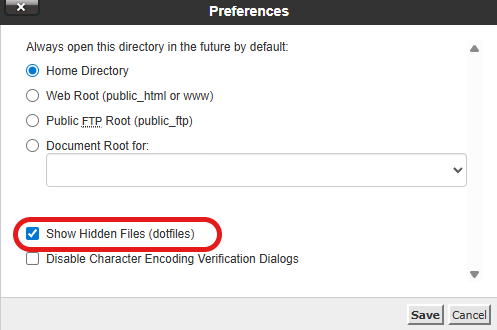
Files that begin with a “.” (known as Dotted Files) are considered hidden files in the file manager. Therefore, it’s important to first enable the display of hidden files through the Settings option and activating the “Show Hidden Files (dotfiles)” setting.

- Edit the .htaccess file and place the code for redirecting http to https within it, then save the file.

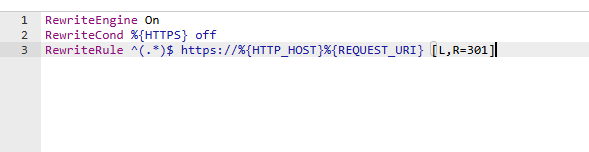
HTTP to HTTPS Redirect Code:
RewriteEngine On
RewriteCond %{HTTPS} off
RewriteRule ^(.*)$ https://%{HTTP_HOST}%{REQUEST_URI} [L,R=301]
Overall, utilizing an SSL certificate is one of the most essential steps to enhance website security and build user trust. By correctly installing and activating SSL in cPanel and ensuring all requests are redirected from http to https, you can guarantee secure data exchange, protect sensitive user information, and prevent security warnings in browsers. These measures, in addition to improving security, create a better user experience and have a positive impact on the website’s credibility and overall performance.