
Having a dedicated email address associated with your website domain is a vital feature for modern businesses. This is because a dedicated email address with your business name and branding builds credibility for your brand. Furthermore, in today’s world, effective communication is one of the most influential methods for gaining recognition and expanding your business. Therefore, having a dedicated email address can greatly contribute to demonstrating professionalism and fostering trust between you and your business users.
In cPanel, you have the ability to create dedicated email addresses based on your website domain. Through the Email section in cPanel, you can create email accounts for each individual on your site, and each email address can send and receive emails with its own unique identity.
Creating an Email Account in cPanel
- Log in to your hosting cPanel
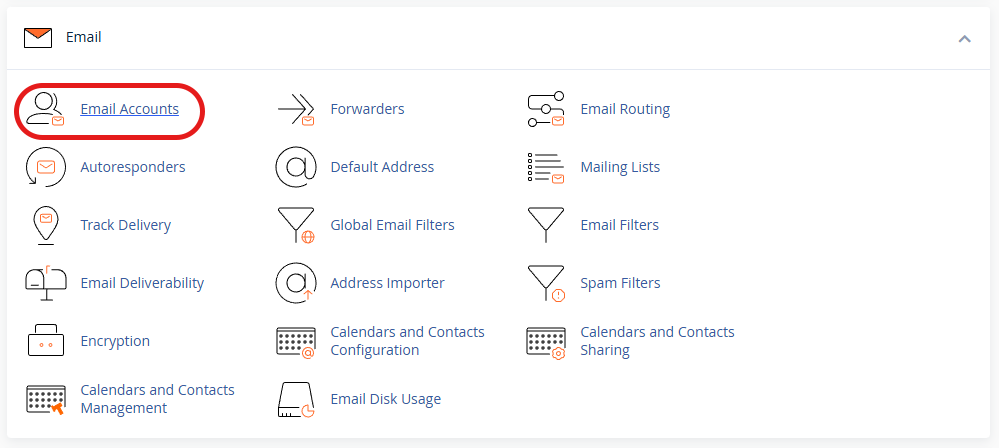
- Go to the Email Accounts section within the Email section
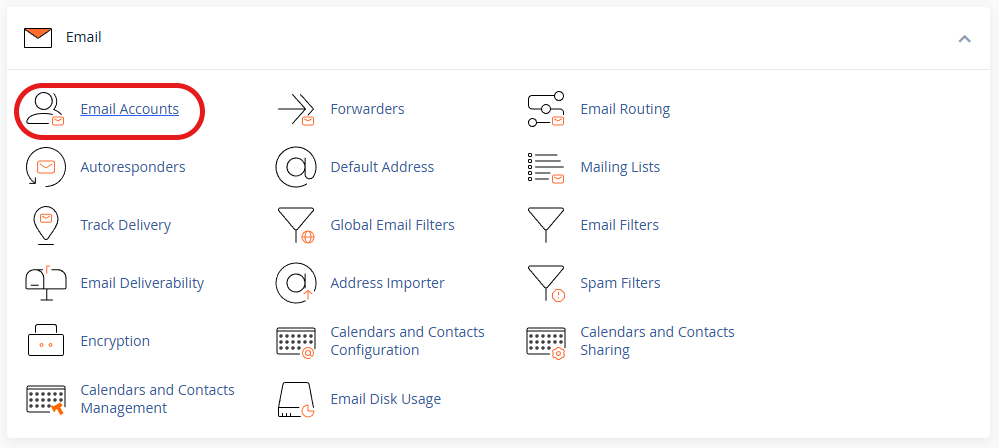
The Email section pertains to the various tools within your hosting account that allow you to manage your email addresses. To create a new email account on your host, you need to access the Email Accounts section.
- Create a new email address
Within the Email Accounts section, you can view a default user for your hosting email service, named after your hosting account itself.
To create a new email account, select the Create option.
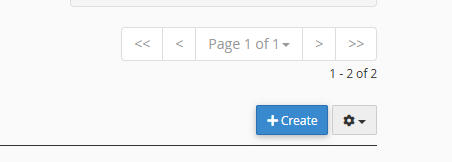
Then, on the new page, enter the specifications you want for your email account.
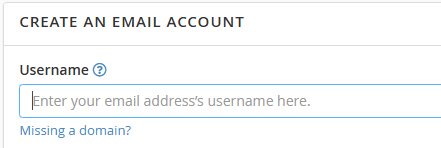
In the Username field, you define the name associated with your email account. By entering a name in this field, your email address will be in the following format:EmailAddress@domain.com
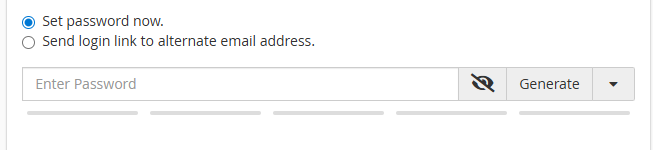
In the Password section, you will set the password for your email account. By selecting the “Generate” option, a strong password will be created for your email address by the system, which you can then save.
Finally, by selecting the Create option, your email account will be created.

Adding the Created Email to an Email Management Service
An email management service is software that allows you to access and manage an email address. With this software, you can send and receive emails, and check emails sent to that address.
You can accomplish this using services like Outlook or Thunderbird.
You can also use the features available in the cPanel control panel to manage your email account.
If your chosen email management service supports cPanel, you can configure it through cPanel. Then, you will need to use the second method to complete the process of adding your email account to the service.
Configuring and Setting Up Your Email Account in cPanel
- Log in to your cPanel account.
- In the Email section of your cPanel dashboard, go to Email Accounts.
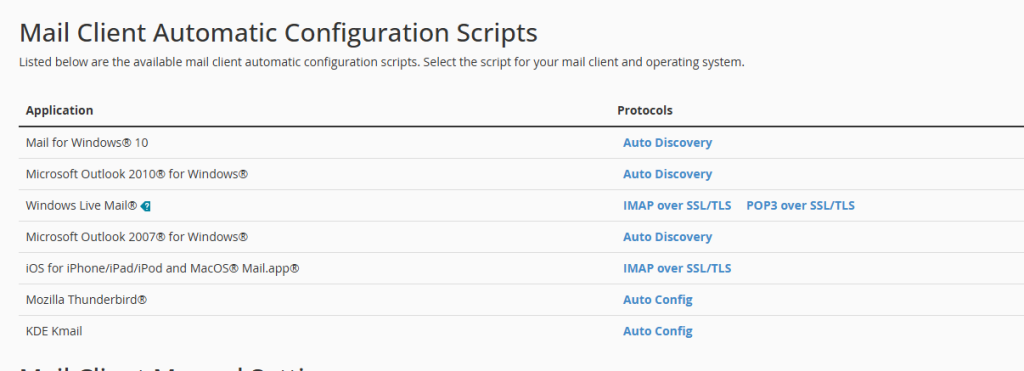
- Next to your email account, select the Connect Devices option.

- In the Application section, you will find supported services and instructions for connecting your email account to them. However, you can also manually configure your email account in other services not specifically listed here.
Configuring Your Email Account in Your Preferred Service
After choosing the software you prefer to manage your email account, you need to configure your account within it and prepare it for use.
To do this, you will need your email address details as well as your login credentials.

In this example, we will enter your email account into Outlook;
- Open the Outlook application on your system.
- Go to the File tab and select Account Info.
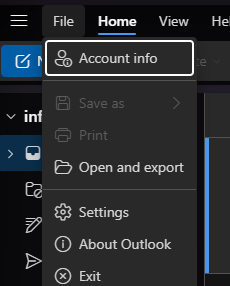
- Select Add Account.

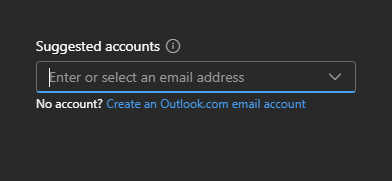
- On the new page, you will need to enter your email address. Then, you will need to enter the password you set for it.
In this section, the software will automatically configure the IMAP or POP3 protocol for your domain.
IMAP and POP3 Protocols
In short:
- POP3 (Post Office Protocol 3) is a protocol that downloads email messages directly to the user’s system. This feature is ideal for individuals who want offline access to their emails.
- IMAP (Internet Message Access Protocol) is a protocol that stores received emails on the main server where our website is hosted. This protocol allows you to view and manage your received emails through the server. IMAP is suitable for those who want to access their email from multiple devices.
Managing and Applying Changes to Email Accounts Created in cPanel
In cPanel, you have the ability to perform various actions on your email accounts.
The infinity symbol ∞ in the email section indicates that your hosting account has no storage limit for that particular email account. Each account has a different storage quota, which is visible next to its address. You can monitor the storage usage of each account and apply limits as desired.
Furthermore, you can perform other actions in this section, including:
- Email Restrictions. This feature displays any limitations currently applied to an email account.
- Delete. You can remove all data and emails associated with your email address.
- Check Email. You can access and review your emails through the WebMail interface.
- Connect Devices. This feature allows you to add your email account to other software and manage it through those applications.
Changing the Password for an Email Account Created in cPanel
- Log in to your cPanel hosting account.
- In the Email section, select Email Accounts.
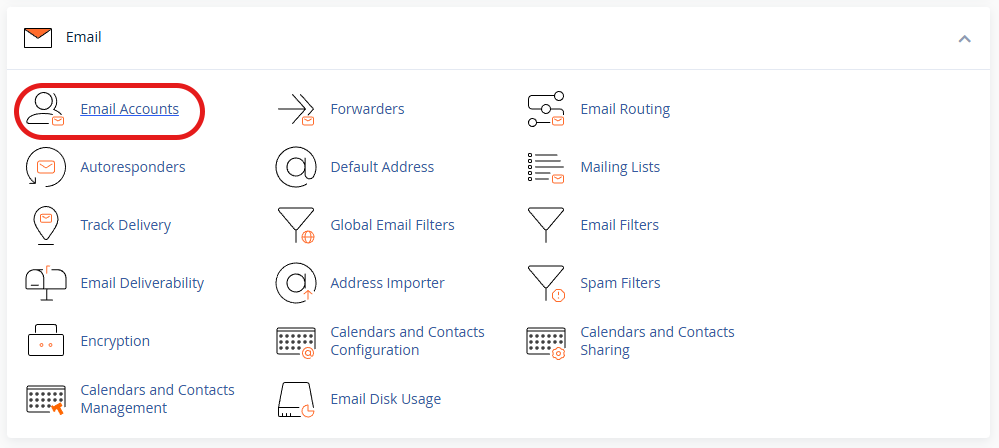
- In this section, you will see the email accounts existing on your hosting. Locate the address you wish to change the password for and select Manage next to it.

- In the Password and Security section, enter the new password in the New Password field.

- Finally, select the Update Email Settings option at the bottom of the page.

Tips for Securing Email Accounts Created in cPanel
Once you have completed all the configuration and email creation steps on your hosting account, securing it is a crucial part of using it. This way, you can protect sensitive information shared in your emails and ensure the security of your communication channels.
- Choose a Strong Password: Ensure that you and other users utilize strong and appropriate passwords for your email accounts.
- Two-Factor Authentication (2FA): Always enable two-factor authentication. 2FA adds an extra layer of security, requiring users to verify their identity through another device. This device can be another one of your devices, such as a computer or mobile phone.
- Secure Email Protocols. Utilizing SPF, DKIM, and DMARC security protocols is an excellent security measure for your email. You can leverage their features in your email by creating these records within your hosting account.
Finally, the steps required to use the email service in cPanel are very straightforward, thanks to cPanel’s user-friendly interface designed for individuals of all technical skill levels. This allows anyone to easily create email accounts for their website.
You can utilize your cPanel hosting as a reliable server for managing and storing your emails.